Claude Code iOS: Build and Run Xcode Apps, Even Without a Mac
Claude Code iOS development works from any machine, but building the app needs a Mac: Xcode, Apple’s iOS SDK and the iOS Simulator run on macOS and nowhere else. On a Mac, you have four options: the simulator pane in Claude Code Desktop, an Xcode MCP server like MobileBuildMCP (the project formerly called XcodeBuildMCP), computer use from the CLI, or the Claude Agent built into Xcode. On Linux, Windows, Claude Code on the web or an SSH session, Claude needs a remote Mac to do the Xcode part.
This tutorial covers both. The Mac section uses Anthropic’s and Sentry’s own docs. The no-Mac section uses a real run I did on October 22, 2026, from an Ubuntu box with no Mac in the room: first build in 39 seconds, three tests passing, a screenshot, and Claude tapping a button three times in a live simulator, for $0.10 total.
Disclosure up front: we make macbox, the cloud Mac used in that second half. If you have a Mac, you don’t need it, and I’ll say so where it matters.
What you’ll have at the end
- Claude Code building your app with
xcodebuild, running your XCTest suite, and reading the results. - The app running in an iOS Simulator that Claude can see and tap, and that you can watch.
- A loop you can repeat after every edit: change code, rebuild, test, look at the screen.
Time: on a Mac, mostly however long Xcode takes to download. Without one, the commands in Part 2 added up to under five minutes after setup, and more than three of those were the tests and the first screenshot.
You need Claude Code, an iOS project (an Xcode project, workspace, Swift package or XcodeGen project.yml), and either a Mac with Xcode or a way to rent one.
Which Claude Code iOS setup fits your machine
Start here, because the answer depends almost entirely on where Claude Code runs.
| Where Claude Code runs | Can it reach the iOS Simulator? | What to use |
|---|---|---|
| Claude Code Desktop, local session, on a Mac | Yes | The built-in iOS Simulator pane |
| Claude Code CLI on a Mac | Yes | MobileBuildMCP, or computer use |
| Xcode 26.3 or later on a Mac | Yes | Xcode’s built-in Claude Agent |
| Linux or Windows (WSL) | No | A remote Mac (macbox, NoMac, or your own) |
| Claude Code on the web / cloud sessions (Anthropic-hosted) | No | A remote Mac reached from the cloud VM |
| SSH session from Desktop into a Linux server | No | A remote Mac |
The “No” rows come straight from Anthropic’s docs. The simulator pane “is available in local sessions only. In cloud and SSH sessions, Claude runs on a machine that can’t reach the simulators on your Mac” (Claude Code docs, checked 2026-10-22). Anthropic-hosted cloud sessions run on “a fresh virtual machine (VM) running Ubuntu 24.04 on x86_64, regardless of your own operating system” (cloud environments docs). So even if you start a cloud session from your MacBook, the code runs on Linux, and Linux can’t run Xcode.
Part 1: Claude Code, Xcode and the iOS simulator on a Mac
Step 1: Install Xcode and a simulator runtime
Install Xcode from the App Store or developer.apple.com. Anthropic recommends Xcode 26.x or Xcode 27 for the simulator pane. If Xcode shows no simulators, download the iOS runtime:
xcodebuild -downloadPlatform iOSIf you have more than one Xcode installed, the simulator pane uses whichever one xcode-select points at. Check with xcode-select -p.
Step 2 (Desktop): Let the simulator pane open on its own
The iOS Simulator pane is in public beta in Claude Code Desktop on macOS, on Pro, Max, Team and Enterprise plans (except Enterprise organizations with a HIPAA configuration). It needs Claude Desktop v1.24012.0 or later. Anthropic shipped it in July; 9to5Mac covered the launch on July 21, 2026.
There’s no command to run. Open the Code tab, start a local session in your project folder, and phrase the task around running the app:
Build the app and run it in the simulator to check the onboarding flow.When the app launches, the pane opens next to the conversation and streams the device screen. The first time Claude touches a device, Desktop asks you to allow it. After that, Claude taps, types and takes screenshots without more prompts. Building still follows your permission mode, because xcodebuild runs your project’s build scripts on your Mac.
Before you rely on it:
- You and Claude drive the same device, so your taps change what Claude sees. Anthropic’s docs say to hold off tapping while the pane shows a “Claude is using this device” badge.
- Each session gets its own simulator, up to four panes per session, so parallel sessions don’t fight over one device.
- Claude’s screenshots of the device go to Anthropic and are kept under your normal conversation retention. Don’t sign in to real accounts in that simulator.
It only drives simulators. For a physical iPhone, you run the app from Xcode yourself and show Claude a screenshot.
Step 3 (CLI): Add MobileBuildMCP
If you live in the terminal, the CLI has no simulator pane. It can reach the simulator through computer use, which “controls the simulator on your screen the same way you would with a mouse” (computer use docs). You turn on the built-in computer-use server in /mcp and grant macOS Accessibility and Screen Recording permissions. That works, but computer use is a research preview for Pro and Max only (not Team or Enterprise), and your other visible apps are hidden while Claude is driving.
I’d add an Xcode MCP server instead. Claude Code prefers an MCP server over computer use when one exists.
A widely used Xcode MCP server (about 6,500 GitHub stars) is XcodeBuildMCP, which Sentry acquired and has now renamed MobileBuildMCP. The changelog says the npm package, binaries, Homebrew formula and environment variables all moved to the new name. On npm today, xcodebuildmcp stops at 2.7.0 and mobilebuildmcp is at 2.7.1. If a tutorial tells you to install xcodebuildmcp, you’ll get the old package.
Add it to Claude Code with the command from Sentry’s docs:
claude mcp add MobileBuildMCP -- npx -y mobilebuildmcp@latest mcpIt needs macOS 14.5 or later, Xcode 16 or later, and Node.js 18 or later. Restart Claude Code, then ask for the same thing you’d ask the Desktop app: build, run in the simulator, run the tests. Device tools (a real iPhone) need code signing set up in Xcode first. MobileBuildMCP sends internal runtime errors to Sentry; its README links to the opt-out instructions.
Or: Claude inside Xcode
Since Xcode 26.3 (released February 26, 2026), Xcode has its own agent integration. Per 9to5Mac, “Agents like Claude Agent and Codex can now collaborate throughout the entire development life cycle,” and Xcode “exposes its agent interface via Anthropic’s Model Context Protocol (MCP).” You turn it on under Xcode Settings → Intelligence → Anthropic. If you’d rather stay in Xcode than in a terminal, this is the shortest path. It’s still a Mac-only answer.
Part 2: Build a Claude Code iOS app without a Mac
This is the case the Mac options don’t cover. You’re on Linux, on Windows with WSL, in Claude Code on the web, or SSH’d into a dev box. Claude can write Swift all day there, and even compile portable Swift packages, but it can’t build your iOS app against Apple’s SDK or run the simulator. You find out the code is broken when you finally borrow a Mac.
The fix is a Mac somewhere else that Claude can drive from where it already runs. I’ll use macbox because it’s ours and I have a timed run to show you. Each macbox user gets their own macOS VM on a Mac mini (the same one every time) with Xcode 27. Claude talks to it through a CLI or a local MCP server.
What I ran
- Client: Ubuntu, no Mac anywhere,
npx -y macbox(CLI 0.6.2). - Project: a small SwiftUI app with an XcodeGen
project.yml, a local Swift package, two unit tests and one UI test. - A fresh Mac VM, so the first build had no cache.
Step 1: Set it up
The shortest way is to tell Claude Code:
Set up macbox by following https://api.macbox.build/guide/Claude installs the CLI, signs you in and connects the MCP server. New accounts get $10 of credit, which is about 200 Mac minutes. If you prefer to do it by hand, macbox ships as a Claude Code plugin:
claude plugin marketplace add opslane/macbox-agent
claude plugin install macbox@macbox
Or add the MCP server directly. It runs locally and gives Claude tools including build, test, screenshot, run, describe, tap, type, swipe and look:
claude mcp add macbox -- npx -y macbox mcpFrom here on I’ll show the CLI commands, because they’re what Claude ran and you can type them yourself.
Step 2: Build
macbox buildmacbox sends the files git tracks (plus new files git doesn’t ignore), runs XcodeGen on the Mac because the project uses project.yml, and picks a scheme. The lines that mattered in the output:
Generating the Xcode project with XcodeGen
Using scheme "Hello" (others: Greeting). Pass --scheme to choose.
Build Succeeded
That took 39 seconds on a fresh VM. It cost nothing, because macbox bills whole minutes only and drops the leftover part of a minute, so a job under a minute is free.
If you want to see what gets uploaded first, macbox build --dry-run lists every file. .env, .git, Pods, .build, DerivedData and node_modules stay on your machine. CocoaPods and Swift packages are fetched on the Mac.
Step 3: Run the tests
macbox testPASS HelloTests.HelloTests testGreeting
PASS HelloTests.HelloTests testGreetingTrimsSpaces
PASS HelloUITests.HelloUITests testTapCounts (15.00s)
3 tests passedOne line per test, plus the failing log lines when something breaks. Claude reads it, sees which test failed and the log lines around it, and fixes the code without you pasting an Xcode log into the chat. The exit code tells it the result too: 0 worked, 1 the build or tests failed.
This run took 1 minute 38 seconds, which was 1 billed minute, $0.05. The UI test alone took 15 seconds.
Step 4: Take a screenshot
macbox screenshot shot.pngThis boots the simulator, installs the app and saves a PNG back to your machine, so Claude can look at the screen it just built. The first one took 1 minute 37 seconds (1 billed minute, $0.05), because it also boots the simulator.
Step 5: Edit and rebuild
I changed one file and ran macbox build again. 21 seconds, free. After the first upload, macbox sends only the files that changed, and the code and build cache stay on the Mac, so later builds are faster.
This is the loop you’ll spend most of your time in: Claude edits Swift, runs macbox build, reads the error if there is one, and tries again. Both rebuilds we’ve logged on small apps (9 and 21 seconds) finished under a minute, so they cost nothing.
Step 6: Run the app live and let Claude tap through it
macbox runmacbox run builds, launches the app in the simulator, keeps it running, and prints a live link. Open the link in your browser and you see the simulator. You can click, drag and type in it yourself. The session was ready in 22 seconds.
Then Claude reads the screen:
macbox ui describeStaticText "Hello, macbox!" id=greeting
Button "Tapped 0 times" id=tapand taps the button by its id, three times:
macbox ui tap --id tap
macbox ui tap --id tap
macbox ui tap --id tap
Each tap took about 2 seconds. Describing the screen again showed Button "Tapped 3 times". This is the simulator at that moment:
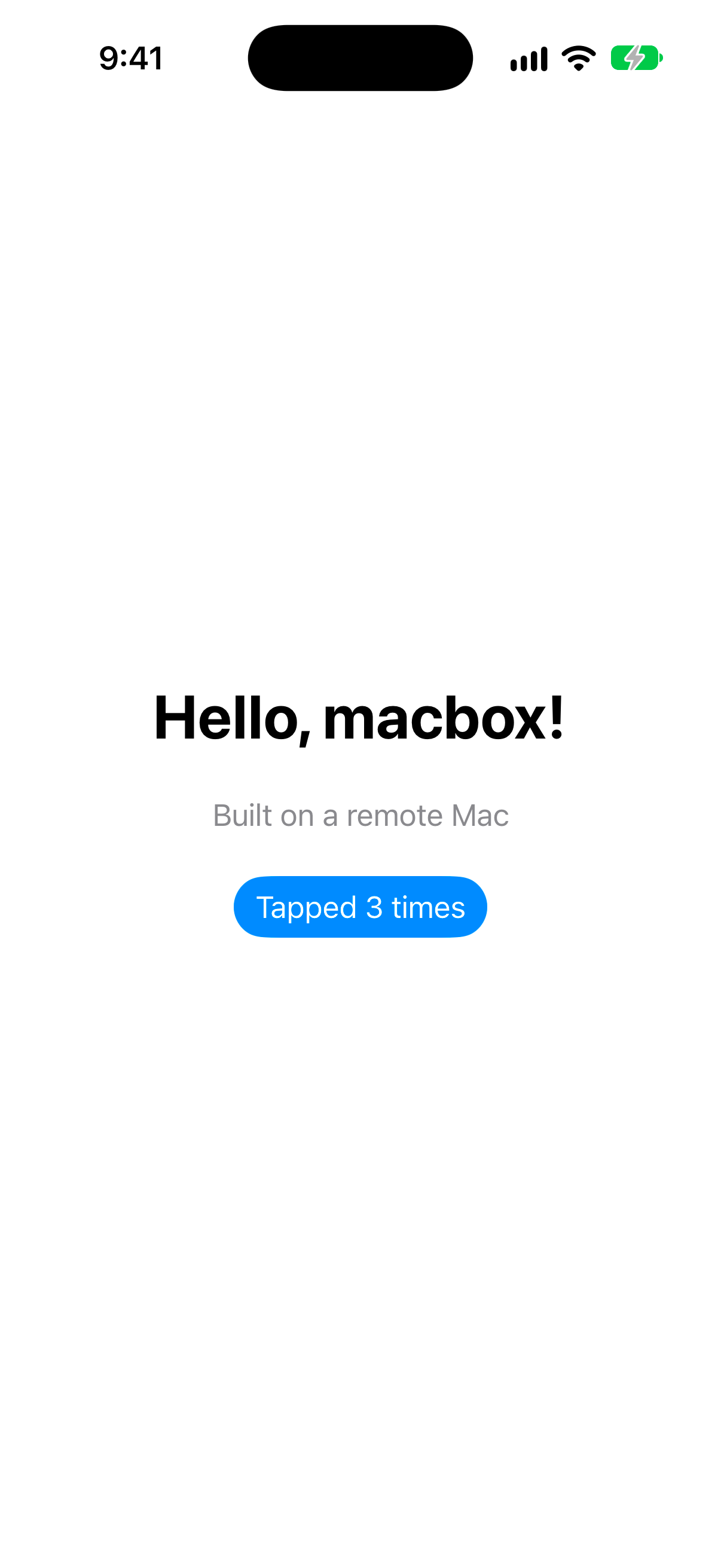
The session ends when you run macbox stop, when you start a new build, test or run in the same folder, after 10 minutes with nobody using or watching it, or at the 30-minute job limit.
What the whole run cost
| Step | Wall time | Billed |
|---|---|---|
| First build (fresh VM) | 39 s | free |
| Tests (3) | 1 m 38 s | 1 minute |
| Screenshot | 1 m 37 s | 1 minute |
| Rebuild after an edit | 21 s | free |
| Live session ready | 22 s | per minute while running |
| Describe + 3 taps | about 2 s each | inside the session |
macbox status afterwards showed 2 billed minutes and my balance going from $10.00 to $9.90. It also shows a daily cap: “Used today: 2 of 180 minutes.”
Claude Code on the web for iOS
Cloud sessions are the trickiest case. Here is what’s documented, and where I’ll send you to the guide instead.
What’s documented: an Anthropic-hosted cloud session is an Ubuntu 24.04 VM. By default its network is set to Trusted, which means “sessions reach package registries and other allowlisted domains, and nothing else”; a Custom level lets you list your own domains. MCP servers you added with plain claude mcp add (local or user scope) live in ~/.claude.json on your machine and don’t come along. Anthropic’s docs say to add them with claude mcp add --scope project, which writes the repo’s .mcp.json, and commit that file.
So for macbox, the MCP entry has to be project-scoped, and the session’s network settings matter, since the default allows only listed domains. The exact steps for cloud agents are in the setup guide; follow that rather than guessing.
What macbox doesn’t have yet is a hosted MCP endpoint. It runs as a local MCP server or CLI, inside whatever machine Claude Code is on. If you want to add a Mac as a remote connector in claude.ai with no install step, macbox can’t do that today.
What macbox doesn’t do (and what to use instead)
I’d rather you find this out here than after you sign up.
- No code signing, TestFlight, App Store upload or physical devices. It builds, tests and runs apps in the simulator.
- No React Native, Flutter or Expo. Native iOS only: Xcode projects, workspaces, Swift packages, CocoaPods, XcodeGen.
- No private packages that need SSH keys.
- One Xcode version (Xcode 27). The oldest iOS target it builds for is 15.0.
- Mac apps build and test (unsigned), but you can’t screenshot them or run a live session.
If you need signing, TestFlight uploads, or Flutter or Expo without a Mac, look at NoMac. It gives your agent a full macOS machine with root, Xcode 27 and 26.6, and handles signing, TestFlight uploads and App Review submissions, and you can install Flutter or Expo on it. It’s also cheaper by the hour: $0.80/hour billed by the minute with a one-minute minimum, against macbox’s $0.05 per minute ($3/hour). macbox makes more sense when your work is lots of short builds, since anything under a minute is free, and when the simulator-only scope is all you need.
Common mistakes
Expecting the simulator pane in a cloud or SSH session
It’s local-only. If you started the session with claude --cloud or picked Cloud in Desktop, Claude is on Linux, whatever your laptop is.
Turning on computer use on Linux
The CLI’s computer-use server only appears on macOS, on Pro or Max. On Linux it won’t show up in /mcp at all.
Wondering why your .env values are missing on the remote Mac
macbox doesn’t send .env unless you pass --include .env. That’s on purpose.
Treating a green build as done
Don’t stop at “Build Succeeded.” Ask Claude to run the tests and look at a screenshot too. Code can compile and still draw the wrong screen.
FAQ
Can Claude Code build iOS apps without a Mac?
It can write the code anywhere, but building and running needs Xcode, which only runs on macOS. Without a Mac, point Claude Code at a cloud Mac. In my run from Linux, a fresh build took 39 seconds and the full build, test, screenshot and live-tap loop cost $0.10.
Does Claude Code on the web support the iOS Simulator?
Not on its own. Anthropic-hosted cloud sessions run on Ubuntu VMs, and Anthropic’s docs say the simulator pane is local-only. You need a remote Mac that the cloud session can reach.
Is XcodeBuildMCP the same as MobileBuildMCP?
Yes. Sentry acquired XcodeBuildMCP and renamed it MobileBuildMCP. Install mobilebuildmcp; the old xcodebuildmcp npm package stops at 2.7.0.
How do I use Claude in Xcode?
On Xcode 26.3 or later, use Xcode’s built-in agent support: the Claude Agent is set up under Xcode Settings → Intelligence → Anthropic. If you’d rather keep Claude Code as your agent, add MobileBuildMCP so Claude Code gets Xcode build, test and simulator tools.
Which is better for Claude Code on a Mac, the simulator pane or MobileBuildMCP?
If you use Claude Code Desktop, start with the pane: nothing to install and you can tap along. If you use the CLI, add MobileBuildMCP, because the alternative is computer use, which drives your screen like a mouse and is limited to Pro and Max.
Can Claude Code ship my app to TestFlight?
Not through the simulator pane, and not through macbox today. Without a Mac, NoMac lists signing and TestFlight uploads among its features.
How much does it cost to run iOS builds from Linux?
With macbox, $0.05 per Mac minute, billed only while a build, tests, a screenshot or a live session runs, and a job under a minute is free. New accounts start with $10 of credit.
Next steps
If you’re on a Mac, open Claude Code Desktop and ask it to run your app in the simulator. That’s the whole setup.
If you’re not, paste this into Claude Code and let it do the rest:
Set up macbox by following https://api.macbox.build/guide/Then ask it to build your app and run the tests. On the small app in this post, the first build took 39 seconds. More at macbox.build.